
Split panes
Several shells in one tab, side by side or one above another: Ctrl+Shift+E and Ctrl+Shift+O (Cmd+D and Cmd+Shift+D on macOS). Maximize one, move it to another tab, and reopen a closed split tab as it was.
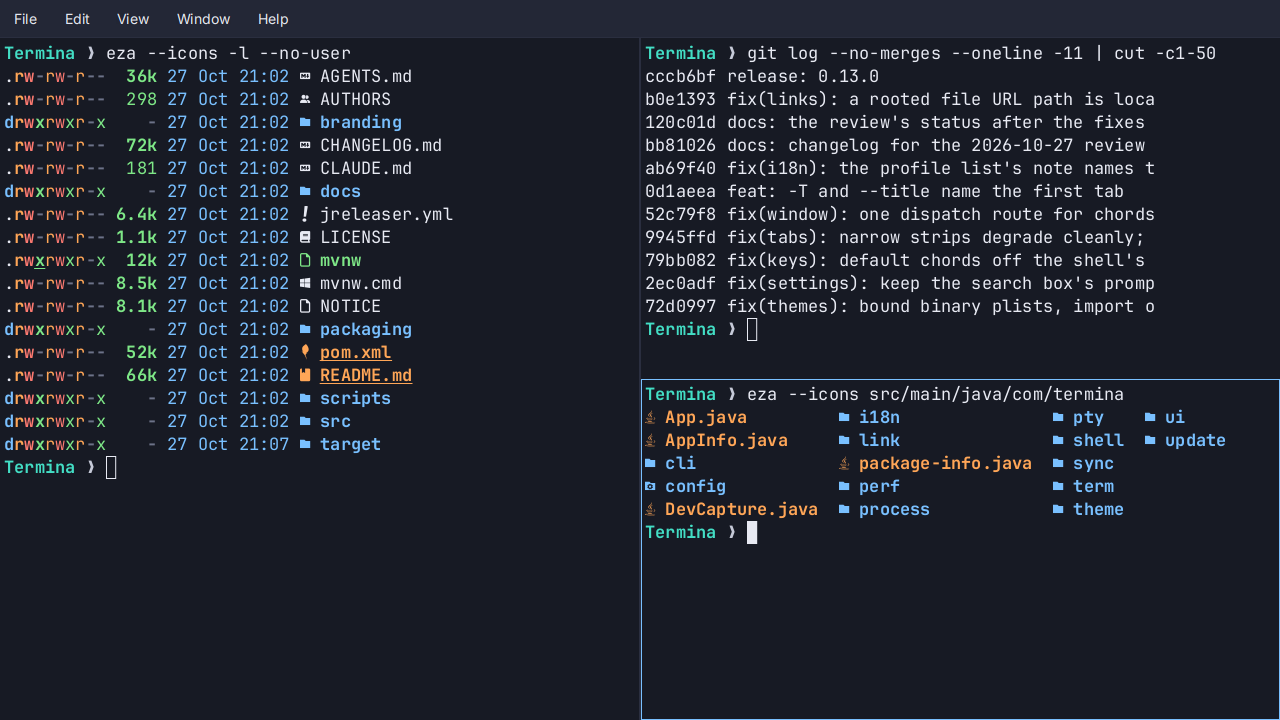
- Split Right and Split Down open another shell beside or below the one you are in: the same shell or profile, in the directory you are in now. Three panes side by side share the width evenly.
- Move with the keyboard or a click.
Ctrl+Alt+Shift+arrows (Cmd+Option+arrows on macOS) go to the pane on that side, and the one being typed in is outlined in the theme’s blue. - The active pane is the one that counts. The tab and the window are titled after it, and Copy, Find, the prompt jumps and a new tab’s directory act on it.
Ctrl+Shift+W(Cmd+W) closes it, and the menu says “Close Pane” while it does. - Maximize with
Ctrl+Shift+Enter(Cmd+Shift+Enter): the active pane fills the tab, with “Pane 2 of 3” in its corner, and the others keep running. - Move a pane to a new tab, or into another tab from the command palette, or drag it with
Ctrl+Alt+Shift(Cmd+Option+Shift) held onto a tab or the strip. Its shell keeps running. - Reopen Closed Tab brings a split tab back with every pane, in its last directory, arranged the same, with the same one active.
See Split panes.